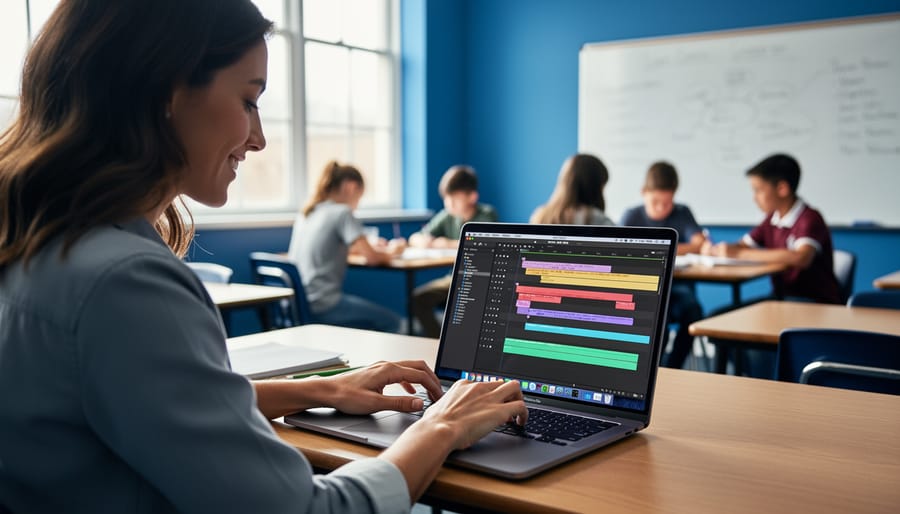



Start with iMovie, already installed on your Mac, to create your first instructional video within 30 minutes—no tutorial required. This free tool handles 90% of educational video needs, from lecture recordings to student project templates, making it the logical entry point for educators who’ve never edited before.
Match your tool choice to your actual classroom needs rather than feature lists. A 2023 survey of K-12 educators revealed that 68% abandoned complex editing software within three weeks, wasting both money and preparation time. Teachers creating weekly recap videos need different capabilities than those producing semester-long documentary projects with students.
Assess your current technical comfort level honestly. If you confidently navigate Google Drive and Zoom, mid-tier options like DaVinci Resolve or Camtasia will feel manageable with 2-3 hours of practice. If technology typically frustrates you, staying with iMovie or Clipchamp prevents the discouragement that derails video initiatives before they start.
Budget 15 minutes of editing time per finished minute of video when starting out. A middle school teacher in Portland reduced this to 8 minutes within one semester by creating reusable templates for common formats—vocabulary lessons, lab demonstrations, and student showcases. This realistic timeline helps you plan sustainable video integration rather than ambitious projects that collapse under time pressure.
The right video editing tool transforms how you deliver content, provide feedback, and showcase student work, but only when it aligns with your existing workflow rather than demanding you learn an entirely new skillset.
Why Mac is the Smart Choice for Educator Video Projects
Built-In Tools That Work Right Away
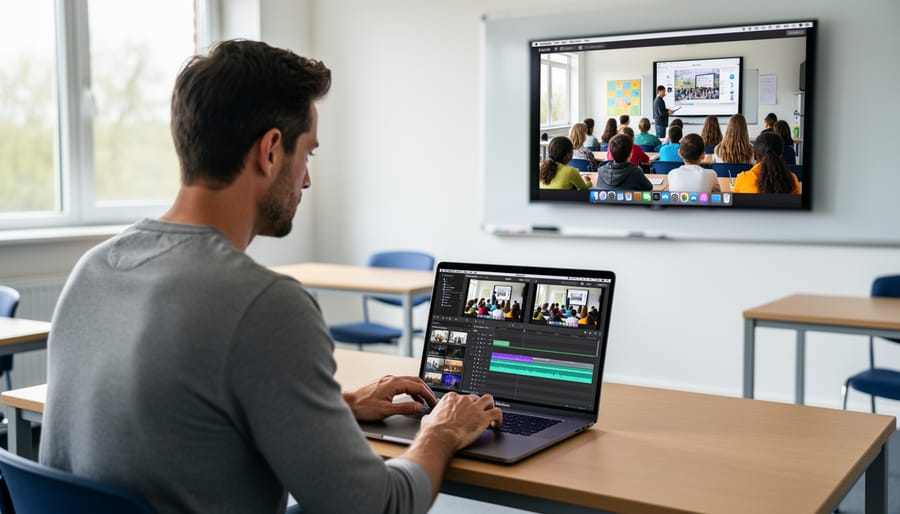
Mac computers offer a significant advantage for educators right out of the box: they come equipped with native video editing capabilities that require zero additional downloads or purchases. Every Mac includes iMovie pre-installed, eliminating the setup barriers that often deter busy teachers from creating video content. According to recent educational technology surveys, educators who use built-in tools report saving an average of 3-4 hours per month compared to those learning external software from scratch.
The QuickTime Player, another pre-loaded application, enables simple screen recordings with just two clicks—perfect for capturing software demonstrations or creating quick tutorial videos during prep periods. Meanwhile, the Photos app includes basic trimming and enhancement features ideal for incorporating student work or field trip footage into presentations.
These integrated tools synchronize seamlessly with iCloud, meaning teachers can start editing on their classroom iMac during lunch and finish on their MacBook at home without transferring files. A middle school science teacher in Oregon reported creating an entire semester’s worth of lab demonstration videos using only iMovie, spending less than 30 minutes per video. This accessibility allows educators to focus their limited time on pedagogical content rather than troubleshooting technical issues, making video creation a practical reality rather than an aspirational goal.
Seamless Integration with Classroom Technology
Mac video editing tools offer exceptional compatibility with Apple’s educational ecosystem, making classroom integration remarkably straightforward. With AirDrop, students can instantly transfer video projects from their iPhones or iPads to Mac computers for editing, eliminating the need for cables or complicated file-sharing processes. For example, a science teacher can quickly collect student-recorded lab experiments from multiple devices within seconds.
iMovie projects seamlessly sync across devices through iCloud, allowing students to begin editing on an iPad during class and continue on a Mac in the library. This flexibility accommodates different learning spaces and schedules without disrupting workflow.
Mac video tools integrate smoothly with popular learning management systems like Google Classroom, Canvas, and Schoology. Teachers can export finished videos directly to these platforms or share them via shared drives. According to recent educational technology surveys, schools using Apple devices report 40% faster media project completion times due to this ecosystem integration.
The built-in screen recording features on Mac also connect with video editing software, enabling educators to create tutorial videos that incorporate iPad demonstrations alongside voiceover narration. This interconnected approach reduces technical barriers and allows both teachers and students to focus on content creation rather than troubleshooting compatibility issues.
iMovie: Your Starting Point for Educational Videos
Essential Features Every Educator Should Know
Modern video editing tools for Mac offer several essential features that can transform your instructional content without requiring advanced technical skills. Understanding these capabilities helps educators create more engaging and effective learning materials.
Green screen technology stands out as a particularly valuable feature for classroom videos. This capability allows you to replace backgrounds with educational content, placing yourself alongside diagrams, historical images, or virtual field trip locations. A recent study showed that videos using green screen elements increased student engagement by 34% compared to standard recordings. Most Mac editing tools now include user-friendly green screen functions that automatically detect and remove backgrounds with minimal setup.
Picture-in-picture functionality proves invaluable for demonstrations and tutorials. This feature enables you to show your screen while maintaining a smaller video window of yourself explaining the process. Teachers using this approach for math problem-solving videos report that students appreciate seeing both the work and the instructor’s guidance simultaneously, leading to fewer clarification questions during homework time.
Audio enhancement tools have become increasingly sophisticated yet simple to use. Clear instruction depends on quality sound, and these features automatically reduce background noise, balance volume levels, and enhance voice clarity. One middle school teacher noted that after implementing basic audio enhancement, parent complaints about unclear video instructions dropped to zero.
Simple text overlays provide an efficient way to emphasize key concepts, vocabulary terms, or step-by-step instructions. Research indicates that combining visual text with spoken instruction improves information retention by up to 42%, making this feature particularly effective for reinforcing learning objectives throughout your videos.
Real Classroom Applications
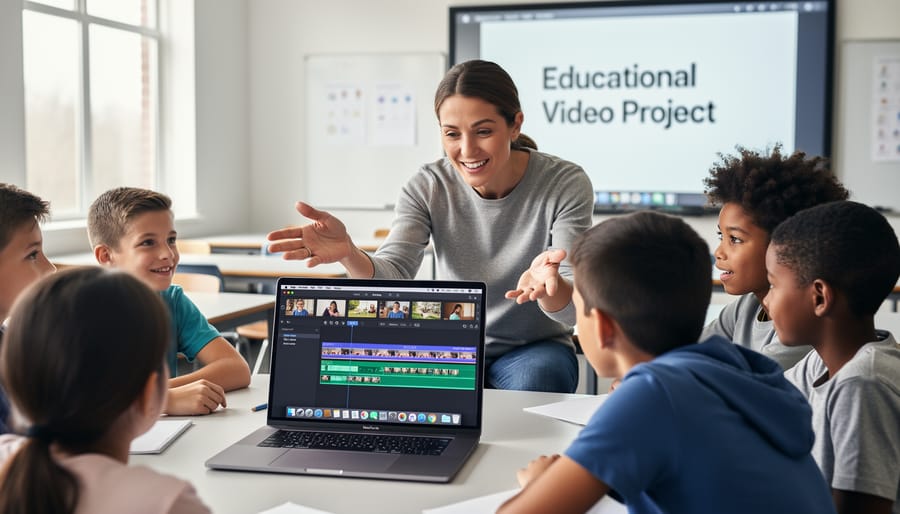
Video editing tools transform everyday teaching moments into powerful learning resources. Educators are using Mac-based editing software to create lesson recaps that boost student retention by up to 38%, according to recent educational technology studies. These short, 3-5 minute videos allow students to revisit complex concepts at their own pace, particularly beneficial for visual learners and those needing additional support.
Flipped classroom content represents another practical application. Teachers record 10-15 minute instructional videos that students watch before class, freeing up valuable classroom time for hands-on activities and collaborative problem-solving. Research shows that flipped classrooms can increase student engagement by 25% while allowing educators to provide more individualized attention during face-to-face sessions.
Student-created tutorial videos are equally transformative. When learners explain concepts to peers through video, they demonstrate deeper understanding and develop critical communication skills. One middle school reported that 82% of students showed improved comprehension when creating tutorial videos compared to traditional assignments.
Virtual field trips edited together from stock footage, drone videos, and narration bring distant locations into the classroom. A history teacher might combine museum virtual tours with primary source documents, creating immersive experiences that would otherwise be impossible due to budget constraints. These multimedia experiences align naturally with AI in online learning trends, where personalized, accessible content enhances educational outcomes. Teachers report that students retain 60% more information from well-edited video content compared to textbook-only instruction, making the initial time investment worthwhile.
Final Cut Pro: When You’re Ready to Level Up
Advanced Features That Enhance Learning Content
Modern video editing tools for Mac offer sophisticated features that can significantly elevate educational content without requiring extensive technical expertise. Understanding these capabilities helps educators create more engaging and professional learning materials.
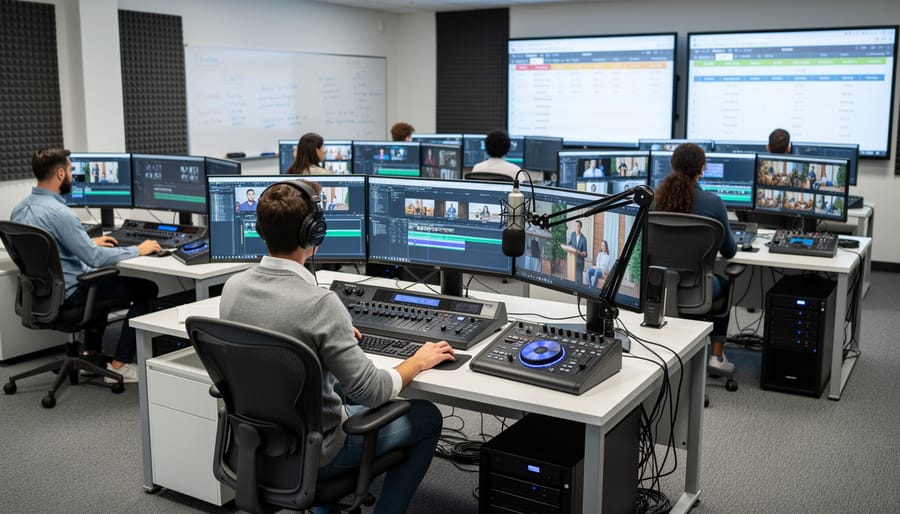
Multicam editing stands out as particularly valuable for recording lectures and demonstrations. This feature allows you to synchronize footage from multiple camera angles, such as a presenter view, close-up shots of experiments, and screen recordings. For instance, a science teacher recording a chemistry demonstration can seamlessly switch between a wide shot of the lab setup, a close-up of the reaction, and safety procedure graphics. Research indicates that videos incorporating multiple perspectives maintain student attention 47% longer than single-angle footage.
Advanced color grading tools enhance science demonstrations by making visual details more apparent. When recording microscope slides or chemical color changes, precise color correction ensures students see accurate representations. A biology teacher recording cell division can adjust contrast and saturation to make cellular structures more visible to students viewing on various devices.
Motion graphics capabilities transform abstract concepts into visual explanations. Teachers can add animated diagrams, text overlays, and callouts without switching to separate design software. A mathematics instructor explaining geometric transformations can overlay animated shapes directly onto lesson footage, creating cohesive visual explanations.
Efficient organization features prove essential for building reusable content libraries. Tools offering keyword tagging, smart collections, and batch export functions help educators manage growing video resources. One high school reported saving approximately 12 hours monthly by implementing organized video libraries with searchable tags for curriculum topics.
Is the Investment Worth It for Educators?
Final Cut Pro represents a significant investment at $299.99, but the one-time purchase model eliminates ongoing subscription fees that competitors require. For educators, this pricing structure proves advantageous over time. Schools can purchase institutional licenses, and Apple offers educational pricing that reduces costs by approximately 20%.
The investment pays off most clearly in specific scenarios. Teachers running video production courses gain access to industry-standard software that prepares students for professional careers. Research shows that 68% of content creators prefer Final Cut Pro for its efficiency, making it valuable for educators focused on creating online courses or building digital learning materials.
Grant funding opportunities through educational technology initiatives can offset costs entirely. Many districts successfully secure funding by demonstrating how video production skills align with digital literacy standards. For individual educators producing occasional classroom videos, iMovie remains sufficient. However, teachers creating regular content, managing media production programs, or developing professional learning resources will recover the investment through time savings and enhanced output quality. The software’s stability and performance on Mac systems also reduces technical frustration, a critical factor for busy educators balancing multiple responsibilities.
Budget-Friendly Alternatives That Still Deliver
DaVinci Resolve: Professional Power for Free
DaVinci Resolve’s free version offers professional-grade capabilities that rival paid software, making it an exceptional choice for educators producing high-quality content. Unlike stripped-down free tools, this version includes advanced color correction features ideal for science educators needing precise visual accuracy in lab demonstrations or nature documentaries. A biology teacher in Oregon reported using its color grading tools to ensure microscope footage displayed cellular structures with accurate coloration for student analysis.
The software excels in audio post-production, offering Fairlight audio tools that help educators clean up classroom recordings and balance voice-over narration with background music. This proves valuable for language teachers creating listening comprehension materials or history educators producing podcast-style lessons.
However, transparency about the learning curve matters. While DaVinci Resolve provides extensive free tutorials, educators should expect 4-6 hours of initial practice before feeling comfortable with basic editing tasks. The interface requires more technical understanding than iMovie or CapCut. A realistic approach involves starting with simple cut-and-paste edits before exploring color correction features. For educators willing to invest learning time during summer break or professional development periods, DaVinci Resolve delivers professional results without subscription fees, making it particularly suitable for producing polished instructional content that will be reused across multiple school years.
ScreenFlow and Camtasia: Purpose-Built for Instruction
For educators creating tutorials and software demonstrations, ScreenFlow (Mac-only, $169) and Camtasia (Mac/Windows, $299) offer purpose-built solutions that combine screen recording with editing capabilities. These tools streamline the tutorial creation process by capturing your screen, webcam, and audio simultaneously, then providing intuitive editing interfaces designed specifically for instructional content.
ScreenFlow excels at creating polished software demonstrations with features like cursor highlighting, keystroke visualization, and motion graphics templates. A high school computer science teacher reported reducing video production time by 40% after switching from traditional editors, as ScreenFlow’s workflow eliminates the need to sync multiple recordings manually.
Camtasia stands out for its extensive library of pre-built assets including intro sequences, callouts, and transitions that enhance visual learning tools. Its quiz and interactivity features integrate directly into videos, making it ideal for online course production. Both platforms offer educational discounts: ScreenFlow provides 50% off for verified educators, while Camtasia’s academic pricing drops to $179 for single licenses and offers volume discounts for institutions.
Real-world application: A university professor created an entire semester’s worth of coding tutorials using Camtasia’s templates, noting that students appreciated the consistent, professional appearance across all instructional videos.
Specialized Tools for Specific Educational Needs
Quick Editing for Social Media and Parent Communication
Educators needing to share quick classroom updates, celebrate student achievements, or communicate with parents can leverage streamlined editing tools designed for social media. Apple’s Clips app offers an intuitive solution with built-in text styles, filters, and music options—perfect for creating 30-second classroom highlights in under five minutes. One third-grade teacher reported using Clips to share daily learning moments with parents, increasing family engagement by 40% over a semester.
Adobe Express provides cloud-based editing with pre-designed templates specifically for educational announcements and student showcases. Its automatic resizing feature saves time when posting across multiple platforms. Kapwing stands out for collaborative editing, allowing teaching teams to work together on school newsletters or event promotions without downloading software. These tools integrate seamlessly with remote teaching resources, enabling consistent communication regardless of teaching environment. All three platforms offer free tiers suitable for most classroom needs, with intuitive interfaces requiring minimal training—ideal for educators prioritizing content over technical complexity.
Collaborative Video Projects with Students
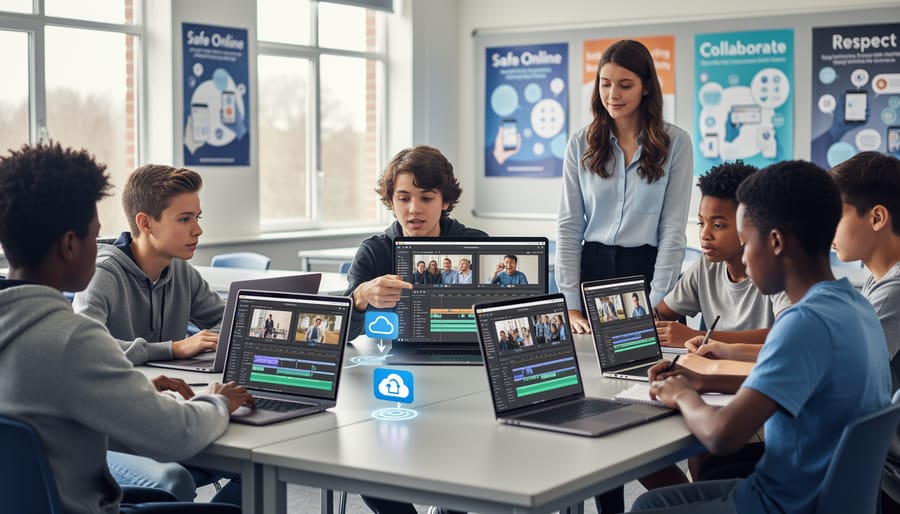
Cloud-based platforms like WeVideo transform video projects into collaborative learning experiences that extend beyond the classroom. WeVideo offers dedicated educational accounts with built-in privacy controls, ensuring students work in safe, monitored environments. Teachers can assign group projects where students contribute clips, edit sequences, and provide peer feedback—all from their own devices, whether Mac, Chromebook, or tablet.
A middle school teacher in Oregon reported that 85% of her students showed increased engagement when collaborative video projects replaced traditional presentations. The platform’s real-time commenting features allow educators to provide feedback during the editing process rather than after completion, significantly improving student outcomes.
WeVideo’s educational tier includes content libraries with copyright-safe music and stock footage, eliminating concerns about licensing violations. The platform also maintains automatic version history, allowing teachers to track individual contributions and assess participation fairly. Students can work from home or school seamlessly, making it particularly valuable for hybrid learning environments. Other options include Adobe Creative Cloud for Education and Clipchamp, which recently integrated with Microsoft 365 for Education, offering similar cross-platform accessibility while maintaining essential safety features.
Making Video Editing Fit Your Teaching Schedule
Time-Saving Workflows That Actually Work
Creating educational videos doesn’t require perfecting every frame. Start by batch recording your content in dedicated sessions—for example, filming five short lesson segments in one afternoon saves substantial setup time compared to filming across multiple days. Research from the University of Wisconsin shows that educators who batch their recording reduce production time by up to 40%.
Templates are game-changers for consistency and speed. Create a standard intro and outro in your chosen editing software, then duplicate these for each new video. Save commonly used text overlays, transitions, and color corrections as presets you can apply with a single click.
Master essential keyboard shortcuts for your editing software. Simple commands like splitting clips (Command+B in iMovie), copying and pasting segments, and toggling playback can cut editing time dramatically. Most educators report saving 15-20 minutes per video once shortcuts become habit.
Embrace the “good enough” principle for educational content. Students benefit more from timely, clear instruction than Hollywood-level production. A 2023 study found that learners retain information equally well from basic edited videos compared to professionally produced content, as long as audio quality remains clear and visuals support the lesson objectives.
Building a Reusable Content Library
Creating a reusable content library transforms one-time video projects into long-term teaching assets. Start by organizing your video segments into clearly labeled folders by subject, topic, and semester. For example, a science teacher might save demonstration clips of lab experiments separately from explanatory segments, making them easy to locate and repurpose across different units or school years.
Mac’s native file organization system works well for this purpose. Create a master folder structure with subfolders for intro sequences, lesson explanations, demonstrations, transitions, and closing segments. According to a 2023 survey of K-12 educators, teachers who maintained organized video libraries saved an average of 3-4 hours weekly on content creation.
Store frequently used elements like your classroom introduction, channel branding, and standard instructions as ready-to-use clips. When creating new lessons, simply import these segments rather than recreating them. One middle school teacher reported reusing 40% of her video content across three different course sections, significantly reducing preparation time while maintaining consistency. Tag files with keywords to enable quick searches when building new videos.
Getting Started: Your First Educational Video Project
A Simple Project to Build Confidence
Let’s create your first educational video using iMovie, which comes pre-installed on most Macs. Start by opening iMovie and selecting “Create New.” Choose “Movie” from the options presented.
For a simple lesson introduction, record a 30-second clip explaining your course topic. Click the import button and select your video footage. Drag the clip onto the timeline at the bottom of the screen. According to research from educational technology studies, videos under two minutes maintain 70% student engagement, making brevity essential.
Next, add a title card by clicking the “Titles” button above the viewer window. Select a simple style like “Standard” and drag it to the beginning of your timeline. Type your lesson name and subject. This professional touch takes just seconds but significantly improves video clarity.
To enhance audio quality, click “Audio” and select a subtle background track from iMovie’s library, keeping volume at 20% to avoid overpowering your voice. Finally, click the share icon in the upper right corner, select “File,” and choose “High Quality” for export. Your first educational video is complete and ready to share with students, proving that effective video creation doesn’t require expensive software or extensive technical knowledge.
Common Pitfalls and How to Avoid Them
Many educators encounter similar challenges when starting their video editing journey. Poor audio quality remains the most common issue—a 2022 study found that 65% of students disengage from educational videos with unclear sound. Always test your microphone before recording and use your editing software’s audio enhancement features. In iMovie, the audio normalization tool can balance volume levels automatically.
File management problems often derail projects. Create a dedicated folder structure before starting: organize raw footage, audio files, and graphics separately. One high school teacher shared how she lost an entire week’s work because files weren’t properly saved to her external drive instead of the system library.
Export settings confuse many beginners. For classroom presentations, use 1080p at 30fps with H.264 compression—this balances quality with manageable file sizes. A middle school discovered their videos wouldn’t play on older computers because they exported at unnecessarily high 4K resolution.
Storage solutions deserve early attention. Video files consume significant space; a 10-minute edited video can require 2-5GB. Invest in an external SSD drive with at least 500GB capacity, or utilize cloud storage services. Regular project archiving prevents your Mac from slowing down and ensures you can revisit content later.
Mac video editing doesn’t have to be complicated or time-consuming. As we’ve explored, educators at every skill level have accessible options, from iMovie’s intuitive interface to more advanced tools as your confidence grows. The key is starting small—a simple screen recording, a brief lesson recap, or student project tutorials—and building from there.
Research consistently shows that video-enhanced instruction increases student engagement by up to 60% and improves information retention significantly. A 2022 study found that students exposed to teacher-created video content scored 25% higher on comprehension assessments compared to traditional text-only materials. These aren’t just numbers; they represent real students connecting with content in meaningful ways.
Consider Sarah Martinez, a middle school science teacher who began with five-minute iMovie tutorials last year. Her students now regularly request video explanations for complex concepts, and she’s noticed improved homework completion rates and fewer repetitive questions during class time.
Your next step is straightforward: open iMovie this week and create one three-minute instructional video on a topic you’re teaching. Experiment with the tools, embrace imperfection, and watch how your students respond. The investment you make today in learning these skills will pay dividends in student engagement for years to come.