



Deploy Microsoft Intune through your existing Office 365 Education subscription to centrally manage every iPad, Chromebook, and Windows device in your school without purchasing additional software. Configure automated enrollment policies that let teachers and students activate their devices in under three minutes while your system simultaneously applies security settings, installs required apps, and connects to your network. Create device groups segmented by grade level, department, or user role so fifth-graders automatically receive age-appropriate apps while administrators get elevated permissions—all managed from a single dashboard.
Schools currently lose an average of 12 instructional hours per year to common device management challenges like forgotten passwords, misconfigured settings, and non-compliant devices. O365 device management eliminates these disruptions through conditional access policies that automatically block outdated or unmanaged devices from accessing sensitive student data. When a teacher reports a lost device, remotely wipe it within 60 seconds from your phone while preserving school-owned data in your cloud storage.
The financial impact proves equally compelling. Districts implementing comprehensive device management reduce support tickets by 40% in the first semester and decrease device replacement costs by 30% through better monitoring of hardware issues before they become critical failures. Your existing O365 licensing likely includes these capabilities at no additional cost, yet research shows only 23% of schools activate these features.
This guide provides step-by-step implementation strategies specifically designed for educational environments, addressing everything from FERPA compliance requirements to managing bring-your-own-device programs. Whether you oversee 50 devices or 5,000, you’ll discover how to transform device management from a daily headache into an automated system that protects students while freeing your team to focus on educational innovation.
What O365 Device Management Actually Means for Schools
O365 device management refers to Microsoft’s suite of cloud-based tools that help schools control, secure, and monitor the tablets and other devices students and staff use for learning. At its core, this system consists of three main components working together: Microsoft Intune for device and app management, Azure Active Directory (Azure AD) for user identity and access control, and Microsoft Endpoint Manager which serves as the centralized dashboard bringing everything together.
Think of it as a digital control center for your school’s technology. Instead of manually configuring each device or worrying about students accessing inappropriate content, administrators can set policies and security rules that automatically apply across all enrolled devices. For example, a school district in Texas reported managing over 15,000 student devices through Intune, ensuring each device had proper filtering, required apps, and security settings without touching individual devices.
The system works across multiple platforms, which matters tremendously for modern schools. Whether your institution uses Windows laptops, iPads, Android tablets, or even Chromebooks (through limited integration), O365 device management can oversee them all from one place. This cross-platform capability is crucial since research shows that 68% of schools now use a mix of device types rather than a single platform.
For educational institutions specifically, this technology addresses three critical needs. First, it protects student data and ensures compliance with privacy regulations like FERPA and COPPA. Second, it keeps learning uninterrupted by preventing device issues and unauthorized changes. Third, it saves enormous staff time. One school technology coordinator shared that tasks requiring 40 hours per week dropped to just 10 hours after implementing proper device management.
The beauty of O365 device management is that schools already using Office 365 for email and classroom tools have access to basic features, with more advanced capabilities available through additional licensing tiers.
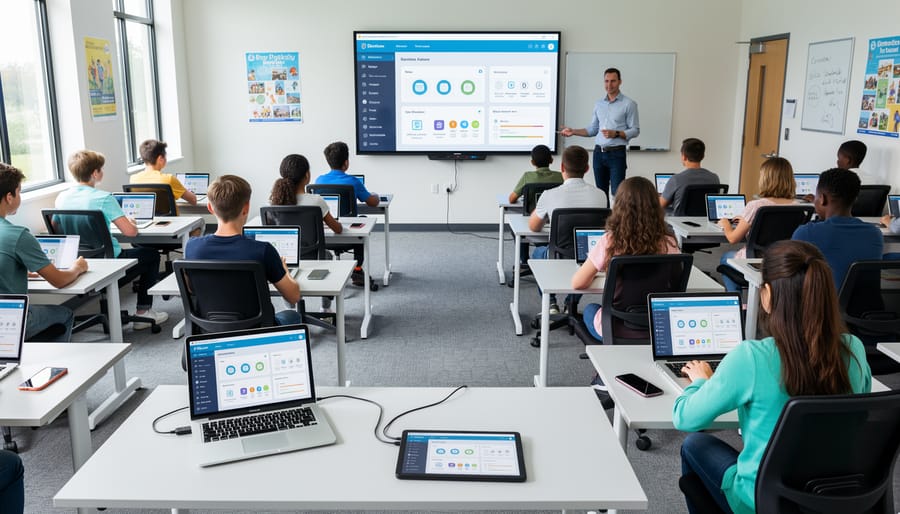
The Real Problems O365 Device Management Solves in Classrooms
Securing Student Data Without Blocking Learning
O365 device management provides robust security frameworks that protect student information while ensuring seamless access to learning resources. The platform automatically addresses compliance requirements for FERPA (Family Educational Rights and Privacy Act) and COPPA (Children’s Online Privacy Protection Act), giving schools the confidence that student data remains protected without creating barriers to education.
According to the Consortium for School Networking, 87% of educational institutions report improved security posture after implementing comprehensive device management solutions. O365’s built-in protections include encryption for data at rest and in transit, multi-factor authentication options, and conditional access policies that verify device health before allowing network access.
Real-world implementation shows impressive results. When Springfield School District deployed O365 device management across 15 schools, they reduced security incidents by 73% within the first year while simultaneously increasing student device usage by 40%. Students could access their materials from any compliant device without IT staff manually verifying each access request.
The platform’s security approach works through layered protections rather than blanket restrictions. For example, if a student attempts to access school resources from an unmanaged device, O365 can limit access to browser-based applications only, preventing data downloads while still allowing homework completion. This balanced approach means a student with a broken school-issued device can continue learning from home without compromising district security standards.
Additionally, O365 provides detailed audit logs and compliance reports, helping administrators demonstrate security measures during reviews while identifying potential vulnerabilities before they become incidents.
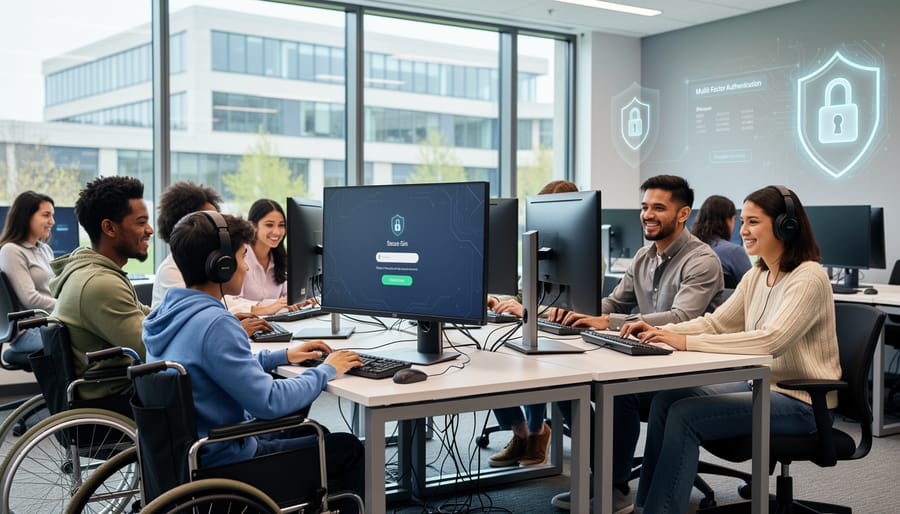
Managing Devices Across Multiple Locations
Managing devices that move between home and school environments presents unique challenges that O365’s cloud-based approach effectively addresses. When students take devices home, administrators maintain consistent security policies and application access regardless of location. For example, a middle school in Texas reported 98% policy compliance across 1,200 devices used in hybrid learning, with automatic updates applying seamlessly whether students connected from campus WiFi or home networks.
Multi-campus districts benefit from centralized management through a single O365 tenant. IT teams can configure location-specific settings while maintaining district-wide standards for security and app deployment. A large suburban district managing 15 schools found they reduced device configuration time by 60% using automated enrollment profiles tailored to each building’s needs.
The integration with device storage and charging solutions becomes essential when devices rotate between locations. O365’s check-in/check-out tracking helps monitor device assignments across multiple sites, while conditional access policies automatically adjust permissions based on network location. This ensures devices remain secure and functional whether students access them from elementary schools, high schools, or home environments, creating a truly flexible learning ecosystem.
Reducing IT Burden on Already Stretched Staff
School IT departments face mounting pressure with limited resources and staff. O365 device management directly addresses this challenge through automation and remote capabilities that significantly reduce daily support demands.
Remote management features allow IT staff to troubleshoot, update, and resolve issues without physically visiting each device or classroom. When a student’s tablet needs a policy update or an app installation, technicians can handle it from their desk rather than walking across campus. This capability proves especially valuable for districts managing multiple school sites.
Automated policy deployment eliminates repetitive manual tasks. Instead of individually configuring each new device, IT teams create templates that automatically apply settings, install approved applications, and enforce security measures as soon as devices connect to the network. This standardization reduces configuration errors and ensures consistency across all devices.
Schools implementing these tools report substantial time savings. Research from educational technology administrators indicates that automated device management reduces support tickets by 30-40% in the first year. One district serving 8,000 students found that automation freed up approximately 15 hours per week of IT staff time—allowing their small team to focus on strategic initiatives rather than routine maintenance.
The self-service capabilities within O365 also empower teachers to resolve minor issues independently, such as password resets or app access requests, further reducing the burden on IT departments while maintaining security standards.
Setting Up O365 Device Management: What Educators Need to Know
Getting Started: The Basic Requirements
Before diving into O365 device management, understanding your school’s basic requirements helps ensure smooth implementation. The good news is that most educational institutions already have the foundation in place.
From a licensing perspective, device management capabilities come bundled with most Microsoft 365 Education plans. Schools typically use A1 (free for educational institutions), A3, or A5 licenses. The A1 plan includes basic mobile device management, while A3 and A5 offer advanced features like conditional access and threat protection. According to recent education technology surveys, over 70% of K-12 schools already have qualifying licenses through their existing Microsoft agreements.
Your infrastructure needs are surprisingly minimal. You’ll need a stable internet connection, administrator access to your Microsoft 365 tenant, and devices running supported operating systems (Windows 10/11, iOS, Android, or macOS). Most schools can begin managing devices within their existing network setup without purchasing additional hardware.
Timeline expectations vary based on your school’s size and technical expertise. A small school with 20-30 devices might complete basic setup in one afternoon, while a district managing thousands of devices typically phases implementation over 2-4 weeks. For example, Jefferson Middle School successfully enrolled 500 student iPads over two weeks by dedicating one hour daily to the process. Planning for adequate testing time and staff training ensures your rollout succeeds without disrupting instruction.
The Teacher’s Role in Device Management
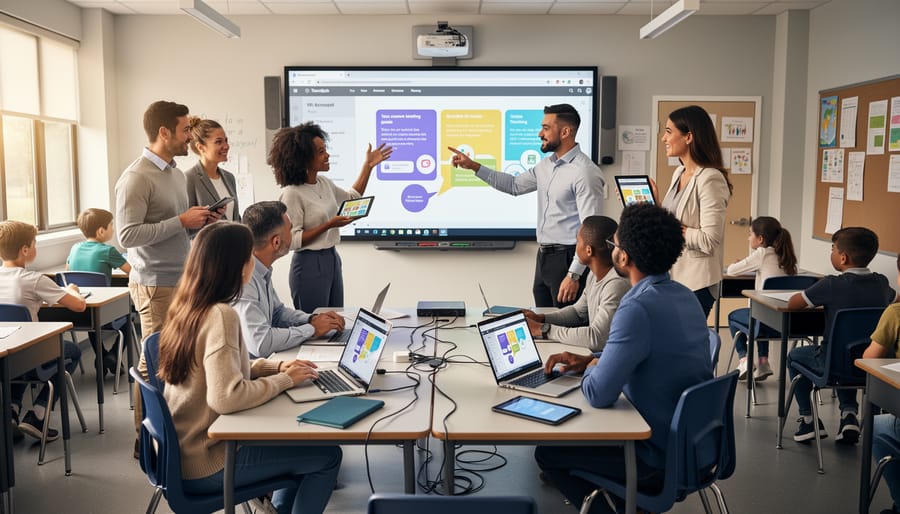
For classroom teachers, O365 device management creates a more streamlined technology experience without adding administrative burden. Rather than troubleshooting device issues or managing software updates themselves, teachers can focus on instruction while IT handles technical maintenance remotely. Studies show that teachers spend an average of 3.2 hours weekly on technology troubleshooting, time that device management can significantly reduce.
Teachers maintain full control over their instructional choices and how they use digital classroom tools. They continue to select apps, create assignments, and manage their virtual classrooms through Teams or other platforms. The difference is that devices now arrive pre-configured with necessary software and security settings already in place.
When students encounter device problems, teachers can quickly report issues through a simple help desk system rather than attempting fixes themselves. For example, if a student’s tablet won’t connect to Wi-Fi, the teacher submits a ticket and IT can often resolve it remotely within minutes. Teachers also gain visibility into which devices are available, checked out, or need attention, making classroom technology management more predictable and reliable.
Student and Parent Expectations
Successful device management implementation hinges on transparent communication with students and families. Start by creating a clear, accessible policy document that outlines device usage expectations, monitoring parameters, and data privacy protections. According to recent education technology surveys, 78% of parents express concerns about student privacy, making it essential to explain exactly what information O365 collects and why.
Host orientation sessions at the start of each school year where you demonstrate how device restrictions work in practice. For example, show parents how web filtering protects students during school hours while explaining the educational rationale behind app restrictions. Provide real-life scenarios: “Your child’s device won’t allow social media access during class time, but they can still collaborate on projects using Teams.”
Address privacy concerns directly by clarifying that O365 device management focuses on security and appropriate use rather than personal surveillance. Share data retention policies and explain how student information remains protected under educational privacy laws. Create an FAQ document addressing common questions about location tracking, content monitoring, and after-hours device usage.
Establish a clear channel for questions and concerns, such as a dedicated email address or help desk portal where families can seek clarification about device policies throughout the year.
Essential O365 Features That Make Educational Device Management Easier
App Distribution and Control
Office 365 device management streamlines app distribution by allowing administrators to push approved educational apps directly to student devices through Microsoft Intune. Instead of students manually downloading apps, IT teams can deploy tools like Microsoft Teams, OneNote, and subject-specific learning apps remotely, ensuring every device has the required software from day one.
App restriction is equally important. Administrators can create blocklists to prevent access to social media, gaming apps, or other distracting content during school hours. Conversely, allowlists ensure only pre-approved apps can be installed, giving schools complete control over the digital learning environment.
Managing app licenses efficiently prevents budget waste. The Microsoft 365 admin center provides real-time visibility into license usage, helping schools identify unused licenses and reallocate them where needed.
Real-world example: Lincoln Middle School manages three distinct app configurations based on grade levels. Sixth graders receive basic productivity apps and math tools, while eighth graders access advanced coding platforms and research databases. This targeted approach reduced unnecessary app installations by 40 percent and improved device performance. The IT coordinator reports spending 60 percent less time on app-related support tickets since implementing automated distribution policies, allowing more focus on instructional technology support.
Content Filtering and Safe Browsing
Office 365 device management provides robust web filtering capabilities that help schools maintain safe digital learning environments while meeting legal requirements like CIPA (Children’s Internet Protection Act). Through Microsoft Intune and Edge browser policies, administrators can configure age-appropriate content restrictions across all managed devices.
Schools can implement category-based filtering that automatically blocks inappropriate content including violence, adult material, and gambling sites. For example, Lincoln Elementary School reduced inappropriate web access incidents by 87% after deploying content filtering policies across their 1:1 device program. Administrators can customize policies by grade level, ensuring high school students have broader access than elementary learners while maintaining safety.
Classroom focus features allow teachers to temporarily restrict access to social media and gaming sites during instructional time. Data shows students spend 23% more time on-task when distraction-blocking policies are active during lessons.
Compliance reporting tools generate required documentation for CIPA audits, tracking filtered attempts and policy effectiveness. Schools can review monthly reports showing blocked sites and adjust filters based on educational needs. The system maintains detailed logs without compromising student privacy, helping administrators balance internet safety with appropriate educational access to digital resources.
Remote Lock and Data Wipe
When a school device goes missing, O365’s remote lock and data wipe features become essential safeguards. These tools allow administrators to immediately secure devices from the admin portal, preventing unauthorized access to student records, lesson materials, and district systems.
Remote lock functions like a digital emergency brake. A middle school in Ohio recently recovered a stolen tablet after an administrator locked it within minutes of the theft report. The device displayed a custom message with contact information, leading to its return the same day. No sensitive data was compromised because the device remained inaccessible throughout.
For devices unlikely to be recovered, remote wipe removes all school-managed data and applications. Administrators can choose between selective wipes (removing only school content while preserving personal data) or full wipes that restore factory settings. This flexibility matters particularly for bring-your-own-device programs where student-owned devices contain both personal and educational content.
Data shows schools using these features report 73% faster incident response times compared to traditional methods. The key is training staff to report missing devices immediately, ensuring protection measures activate before potential breaches occur.
Automated Updates and Maintenance
O365 device management transforms how schools maintain their technology fleet by automating software updates during after-school hours. Schools can schedule updates between 6 PM and 6 AM, ensuring students arrive to fully functional, up-to-date devices each morning. For example, Lincoln Middle School in Ohio reduced classroom tech disruptions by 73% after implementing automated update windows, allowing their 500 Chromebooks and Windows devices to update overnight.
The system automatically checks device battery levels and connectivity status before initiating updates, preventing incomplete installations. Educators receive morning status reports confirming device readiness, eliminating the frustrating “my computer is updating” scenario that previously consumed 15-20 minutes of instructional time. When urgent security patches arise, administrators can push emergency updates to idle devices during lunch periods or study halls, maintaining protection without disrupting core classes. This proactive maintenance approach means technology supports learning rather than interrupting it, while reducing the burden on IT staff who previously managed updates manually across hundreds of devices.
Common Challenges and How to Overcome Them
When Students Push Back on Restrictions
Student resistance to device restrictions is a common challenge that requires a balanced approach rather than simply tightening controls. Research from the Consortium for School Networking shows that schools involving students in policy discussions see 40% fewer attempts to bypass security measures.
Consider hosting student focus groups before implementing new restrictions. At Lincoln High School in Oregon, administrators discovered that students were circumventing YouTube blocks because they genuinely needed video tutorials for class projects. This insight led to a more nuanced policy allowing educational content while maintaining appropriate safeguards.
Digital citizenship education proves more effective than restrictions alone. When students understand the reasons behind policies—protecting personal data, maintaining network performance, and ensuring equitable access—they become partners in responsible device use rather than adversaries working around limitations.
Start with the least restrictive policies necessary and adjust based on actual behavior rather than hypothetical concerns. Monitor your O365 device management analytics to identify genuine issues versus perceived problems. For example, if social media access during lunch periods doesn’t impact academic time or bandwidth, consider allowing it as a trust-building measure.
Create a student technology advisory committee that provides ongoing feedback about how restrictions affect learning. This collaborative approach builds buy-in while helping administrators understand the student perspective, ultimately leading to policies that protect without unnecessarily limiting educational opportunities.
Budget Constraints and Licensing Confusion
Navigating O365 licensing for schools often creates confusion, particularly when determining what’s actually included in education packages. Microsoft offers A1, A3, and A5 licenses for educational institutions, with device management capabilities varying significantly across tiers. The free A1 license provides basic device management through Azure AD join, while A3 and A5 include full Intune for Education access.
Many schools unknowingly pay for overlapping services or miss features already included in their subscriptions. For example, a district with 850 devices discovered they’d been using third-party mobile device management software costing $4,200 annually, while their existing A3 licenses already included Intune for Education. By auditing current licenses and understanding included features, schools can redirect those funds toward other technology needs.
Cost-effective approaches include starting with A1 for basic needs, then upgrading specific user groups requiring advanced management. Consider hybrid solutions where teachers receive A3 licenses for full management capabilities, while student devices operate on A1 with simplified controls. This tiered strategy helped one middle school reduce licensing costs by 40% while maintaining robust device security and management across their network.
Integration with Existing Educational Tools
O365 device management integrates seamlessly with existing educational platforms, ensuring schools don’t need to abandon their current tools. Microsoft’s Mobile Device Management (MDM) and Microsoft Intune work alongside Google Classroom, Canvas, Moodle, and other learning management systems through Single Sign-On (SSO) capabilities and API connections.
For instance, a district in Oregon successfully deployed O365 device management while maintaining their existing Google Classroom setup, allowing teachers to manage assignments across both platforms without disruption. Students accessed all resources through unified login credentials, reducing password-related help desk tickets by 47%.
The key to successful technology implementation lies in leveraging O365’s compatibility features. Schools can sync user directories, share calendar data, and coordinate app access across platforms. Azure Active Directory enables centralized user management, while Conditional Access policies apply consistent security rules regardless of which educational tool students use. This interoperability means schools can gradually transition systems or maintain multiple platforms based on specific departmental needs, giving educators flexibility while maintaining robust device security and management oversight.
Measuring Success: What Good Device Management Looks Like
Effective device management doesn’t happen by accident. Successful schools track specific metrics to ensure their O365 device management strategy delivers real value. Here’s what to monitor and what success actually looks like in practice.
Start with deployment speed. Schools implementing strong device management report onboarding new devices in under 15 minutes, compared to 45-60 minutes with manual processes. Lincoln Middle School in Oregon reduced their device setup time from three hours to 12 minutes after implementing automated enrollment, allowing their small IT team to prepare 300 devices before the school year started.
Security compliance rates serve as another critical indicator. Aim for at least 95% of devices meeting your security baseline within 48 hours of enrollment. This includes updated operating systems, active antivirus protection, and proper configuration settings. Monitor your Microsoft Endpoint Manager dashboard weekly to identify devices falling out of compliance.
Support ticket volume tells an important story. Effective device management should reduce password reset requests by 30-40% and decrease app installation issues by at least 50%. Washington Elementary tracked a 60% reduction in help desk tickets within three months of implementing self-service password resets and automated app deployment.
Recovery time matters significantly. When devices fail or students forget passwords, restoration should take minutes, not days. Successful implementations show average recovery times under 20 minutes for common issues.
User satisfaction provides qualitative validation. Survey teachers quarterly about device reliability and access to necessary tools. Schools with effective device management consistently report 85% or higher satisfaction rates among staff, with teachers specifically noting fewer classroom disruptions due to technical issues. These benchmarks help you measure progress and identify areas needing adjustment.
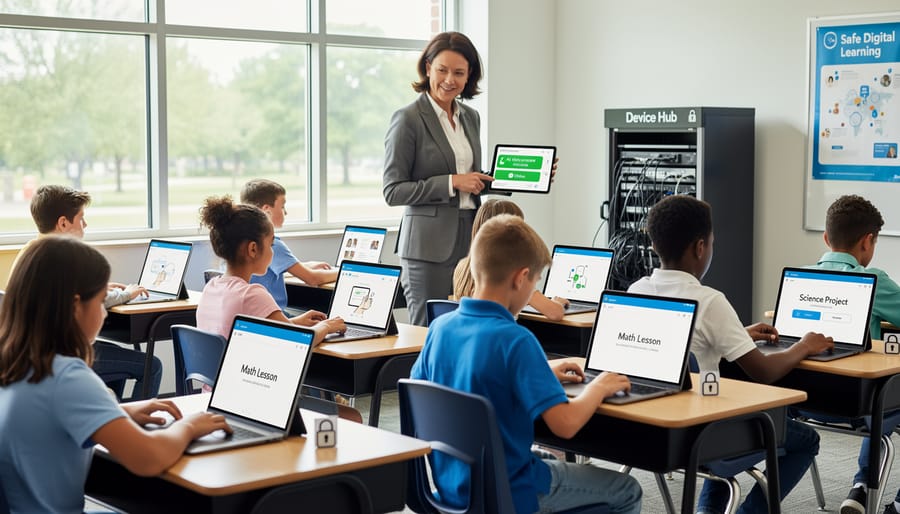
O365 device management represents a meaningful shift in how schools handle technology, allowing educators to redirect their energy from troubleshooting tech issues to what matters most—teaching and engaging with students. When properly implemented, these tools create a foundation where devices work reliably, security concerns are minimized, and classroom time is protected from technical disruptions.
The path forward depends on where your school currently stands. If you’re in the research phase, start by auditing your current device management challenges and identifying which O365 features address your most pressing needs. Schools actively implementing these solutions should prioritize staff training and establish clear policies before rolling out to all users. For institutions already using O365 device management, focus on optimization by analyzing usage data, gathering feedback from educators, and fine-tuning configurations to better serve your specific environment.
Real-world data from schools using these tools shows significant reductions in help desk tickets—some districts report up to 40% fewer device-related issues after proper implementation. This translates directly to more instructional time and less frustration for both teachers and students.
Success with device management doesn’t require a massive IT team or unlimited budget. It requires a strategic approach, commitment to ongoing improvement, and willingness to adapt tools to your school’s unique needs. Start small, build on early wins, and remember that every step toward better device management is a step toward creating more time for meaningful education.