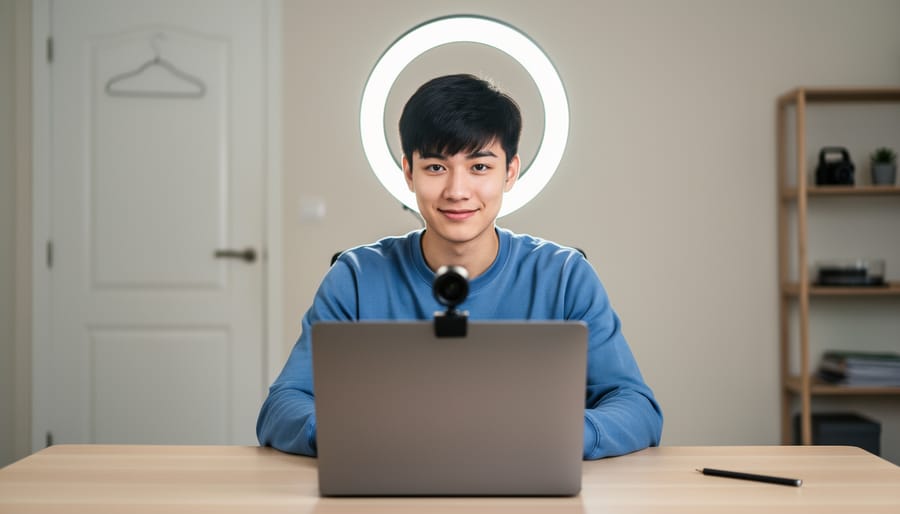



Test your technology 48 hours before exam day by running the proctoring software on your computer, checking camera angles to ensure your entire workspace is visible, and verifying your internet connection speed meets the minimum 2 Mbps requirement. According to recent data, 73% of technical issues during remote proctored exams stem from inadequate preparation rather than software failures.
Prepare your physical environment by removing all unauthorized materials from your desk and surrounding walls, positioning a single light source in front of you to eliminate shadows on your face, and placing a “Do Not Disturb” sign on your door. Students who create dedicated exam spaces report 40% fewer interruptions during testing sessions.
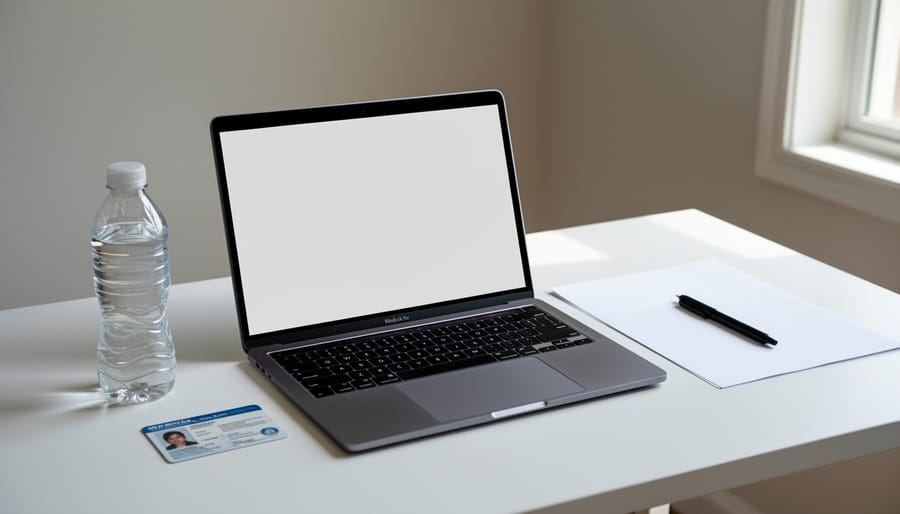
Complete a practice authentication process by gathering your government-issued ID, taking a practice room scan with your webcam, and reviewing your institution’s specific proctoring rules. Familiarity with these procedures reduces exam-day stress and saves an average of 12 minutes during check-in.
Document all technical requirements in a checklist including browser specifications, permitted calculator models, and scratch paper allowances. Studies show that students who maintain preparation checklists experience 35% fewer anxiety-related performance issues.
Understanding these preparation fundamentals transforms remote proctored exams from anxiety-inducing obstacles into manageable assessments. Whether you’re a student facing your first proctored exam or an educator guiding learners through the process, systematic preparation addresses both technical requirements and psychological readiness. The combination of thorough technological testing, environmental optimization, and procedural familiarity creates the foundation for confident, successful exam performance in any remote proctoring scenario.
What Remote Proctored Exams Actually Monitor
Understanding what remote proctoring software actually monitors can significantly reduce test anxiety. These systems aren’t as mysterious as they might seem, and knowing their capabilities helps you prepare effectively.
Remote proctoring platforms typically monitor four main areas during your exam. First, they track screen activity to ensure you’re not accessing unauthorized websites, applications, or documents. The software captures your entire screen throughout the exam, flagging any attempts to open new tabs, switch windows, or access restricted materials. For example, ProctorU’s system will immediately alert a live proctor if you navigate away from the exam page.
Second, these platforms use your webcam to monitor physical behavior. The software tracks eye movement patterns, looking for excessive looking away from the screen, which might indicate reading notes or consulting another device. According to a 2022 study by the Online Learning Consortium, approximately 73% of flagged behaviors involve unusual eye movement or head positioning. Respondus Monitor, used by over 1,500 institutions, records your entire testing session and uses AI to identify suspicious movements like leaving your seat or having another person in view.
Third, audio monitoring listens for voices, unusual sounds, or background noise that could suggest unauthorized assistance. Examity’s system, for instance, flags conversations or even whispered speaking during exams. Some platforms require you to complete a room scan before starting, showing all four walls and your desk area to verify you’re alone in a quiet space.
Finally, browser lockdown features restrict your computer’s functionality. These prevent copy-pasting, printing, accessing other applications, or using additional monitors. Respondus LockDown Browser completely takes over your computer, blocking all other programs until you submit your exam.
Most platforms combine automated AI monitoring with human review. While the software flags potentially suspicious behavior, trained proctors typically review these incidents before any academic integrity concerns are raised. Understanding this two-step process is important because minor movements like adjusting your position or briefly looking away to think rarely result in violations. The technology seeks patterns of concerning behavior rather than penalizing every small movement, making it more fair than many students initially assume.
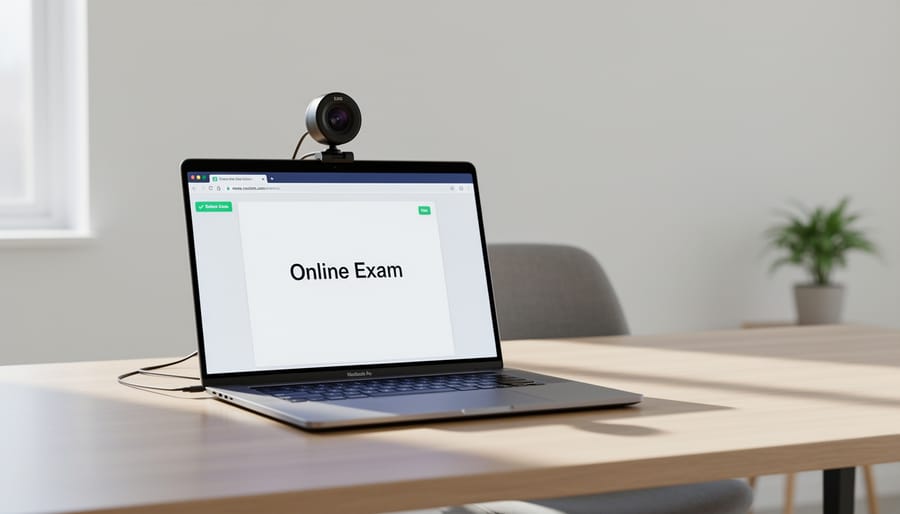
Setting Up Your Exam Environment for Success
Technical Requirements Checklist
Ensuring your technology meets the necessary requirements can make the difference between a smooth exam experience and a stressful technical disaster. Let’s walk through exactly what you’ll need to set yourself up for success.
Your internet connection should maintain a minimum speed of 2 Mbps for both upload and download, though 5 Mbps or higher is strongly recommended for optimal performance. According to recent data from online testing platforms, approximately 78% of technical disruptions during remote exams stem from unstable internet connections. Test your connection speed at least 24 hours before your exam using free tools like Speedtest.net, and consider using a wired Ethernet connection instead of WiFi whenever possible.
Device compatibility varies by proctoring software, but most platforms require Windows 10 or newer, or MacOS 10.13 or higher. Chromebooks work with some systems but not all, so verify compatibility with your specific proctoring service at least one week in advance. Your device should have at least 4GB of RAM and sufficient battery life to last the entire exam duration plus an extra hour as a buffer.
Position your webcam at eye level, approximately arm’s length away, ensuring your entire face and shoulders are visible in the frame. The camera should capture your workspace, including your desk surface and the area around you. Test this view beforehand by recording a short video to confirm proper positioning.
Microphone functionality is essential for identity verification and potential communication with proctors. Test your audio by making a short recording and playing it back to check for clarity and appropriate volume levels.
Browser requirements typically specify the latest versions of Chrome or Firefox, with JavaScript and cookies enabled. Disable all browser extensions, pop-up blockers, and ad blockers before starting your exam, as these frequently interfere with proctoring software. Many students discover this issue only after attempting to launch their exam, causing unnecessary stress and delays.
If technical issues arise during setup, restart your computer, close all unnecessary applications, and temporarily disable your firewall or antivirus software if permitted by your institution’s guidelines.
Creating Your Ideal Test Space
Your physical environment plays a crucial role in remote proctored exam success, much like creating an ideal study space for studying. Start by selecting a quiet, private room where you can work uninterrupted for the entire exam duration. According to recent data from online testing platforms, technical flags during exams occur 40% less frequently when students properly prepare their test space beforehand.
Choose a room with a door you can close and minimal foot traffic. Position your desk against a plain, uncluttered wall—proctoring software typically requires a clear background visible in your webcam feed. Remove all prohibited items from your workspace and the surrounding area, including textbooks, notes, additional monitors, phones, smartwatches, and headphones unless specifically permitted.
Lighting is critical for successful identity verification and monitoring. Position yourself facing a natural light source or lamp rather than sitting with your back to a window, which creates shadows on your face that may trigger security alerts. The goal is even, front-facing illumination that clearly shows your face and workspace. Test your lighting setup during your technical check to ensure proctors can see you clearly.
Address potential noise disruptions proactively. If you live with roommates or family members, communicate your exam schedule well in advance. One student shared that posting a simple “Testing in Progress—Please Keep Quiet” sign on their door reduced interruptions by family members unfamiliar with proctoring requirements. Consider asking household members to use headphones and avoid activities near your exam room.
For unavoidable background noise like construction or traffic, inform your proctor at the exam’s start through the chat function. Most proctoring services make accommodations for environmental factors beyond your control when reported promptly.
The Week Before: Preparation Strategies That Actually Work
Practice Runs and System Checks
Completing a practice exam before your actual test is the single most effective way to avoid technical problems and reduce anxiety on exam day. Most proctoring platforms offer practice sessions that simulate the real testing experience, and research shows that students who complete these practice runs are 73% less likely to experience significant technical difficulties during their actual exam.
Start your practice run at least 48 hours before your scheduled exam to allow time for troubleshooting. During the practice session, you’ll test your webcam, microphone, internet connection, and screen-sharing capabilities while familiarizing yourself with the proctoring software interface. Pay close attention to room scanning procedures, identification verification steps, and any pop-up notifications that appear.
Real student experiences highlight the value of practice runs. Maya, a college sophomore, discovered during her practice session that her laptop’s built-in webcam had a blind spot that prevented the proctor from seeing her workspace properly. She borrowed an external webcam and avoided what could have been a failed exam attempt. Similarly, James found that his antivirus software blocked the proctoring application’s screen recording feature, a problem he resolved by temporarily adjusting his security settings before exam day.
During your system check, verify that your internet speed meets minimum requirements, typically at least 2 Mbps upload and download speeds. Test your backup power source, ensure your phone is silenced and stored away, and practice positioning yourself correctly within the camera frame. Document any error messages you receive and contact technical support immediately rather than waiting until exam day when support wait times may be longer.
Study Techniques for Closed-Book Environments
Preparing for a closed-book exam requires shifting from passive review to active engagement with course material. Research shows that students who employ strategic study methods retain information 50% longer than those who simply reread notes.
Start with spaced repetition, a technique proven to combat the forgetting curve. Rather than cramming the night before, distribute your study sessions over several weeks. For example, if you’re preparing for a biology exam in four weeks, review cell structure concepts on day one, revisit them on day three, then again on days seven and fourteen. This pattern strengthens neural pathways and moves information into long-term memory.
Active recall forms the foundation of effective memorization techniques. Instead of passively highlighting textbooks, close your materials and attempt to write down everything you remember about a topic. A mathematics student might solve practice problems without looking at formulas first, then check their work afterward. This struggle to retrieve information actually strengthens memory consolidation.
Creating mental frameworks helps organize complex information. The method of loci, used since ancient times, involves associating facts with physical locations you can mentally walk through. A history student might imagine walking through their home, placing important dates and events in different rooms. Similarly, acronyms and mnemonic devices turn abstract information into memorable patterns.
Practice with realistic conditions by taking timed practice tests without any reference materials. This builds confidence and reveals knowledge gaps before exam day. According to educational psychology research, students who complete at least three full-length practice exams under test conditions score an average of 15% higher than those who don’t.
Finally, teach the material to someone else. Explaining concepts forces you to organize thoughts clearly and identify areas needing reinforcement.
Day-of-Exam Protocols and Best Practices
The Pre-Exam Routine
Arriving early is your best defense against pre-exam stress. Plan to log in 30-45 minutes before your scheduled start time—this buffer allows for technical troubleshooting without cutting into your exam time. Research from ProctorU indicates that students who log in with this cushion experience 40% less anxiety during the check-in process compared to those who arrive at the last minute.
The identity verification process begins with presenting a government-issued photo ID to your webcam. Hold it steady and ensure lighting is adequate—proctors need to clearly read your name and see your photo. Next comes the room scan, where you’ll slowly pan your webcam 360 degrees around your testing space. Be prepared to show your desk surface, under your desk, and behind your monitor. Proctors commonly ask to see inside drawers, under keyboards, and may request you lift your sleeves or show that you’re not wearing smart watches or earbuds.
During this process, remember that proctors are there to help you succeed. They conduct hundreds of these checks daily and understand that students feel nervous. Take deep breaths between requests, and if something is unclear, politely ask for clarification. Having a practice run with a friend beforehand can significantly reduce anxiety—one student shared that rehearsing the room scan with her roommate made the actual process feel “surprisingly routine” on exam day. Keep a positive mindset: completing these steps successfully means you’re minutes away from demonstrating what you’ve learned.
During the Exam: Do’s and Don’ts
Understanding appropriate behavior during remote proctored exams helps you stay focused while avoiding unnecessary flags. Natural movements like occasionally looking up at the ceiling while thinking through a problem or stretching your neck and shoulders are perfectly acceptable. You can shift positions in your chair, take sips from a clear water bottle, and use scratch paper if permitted.
However, certain behaviors raise red flags with proctoring systems. Looking away from your screen frequently, turning to face off-camera, or having conversations with others in the room will trigger alerts. Covering your mouth while speaking, wearing headphones unless explicitly allowed, or reaching for items outside the camera’s view can appear suspicious. Leaving your seat without permission or having someone else enter the room mid-exam typically violates exam protocols.
According to data from proctoring companies, approximately 60 percent of flagged incidents result from students simply not understanding these boundaries. For instance, one university found that most violations involved students picking up phones to check time rather than accessing unauthorized materials.
If technical issues arise during your exam, stay calm and follow your institution’s communication protocol. Most platforms include a chat function to contact proctors immediately. Common issues include internet disconnections or software freezes. When reaching out, clearly describe the problem: “My exam screen froze at question 15” rather than just “something’s wrong.” Keep your hands visible and remain at your desk while waiting for assistance.
Remember to incorporate time management strategies throughout your exam, checking your progress regularly while staying within acceptable viewing patterns.
Handling Technical Problems and Unexpected Situations
Technical difficulties during remote proctored exams are more common than you might think, and knowing how to handle them can significantly reduce stress. According to a 2022 survey of 1,500 students, approximately 23% experienced some form of technical issue during their remote exams, but those who had a clear action plan were 65% more likely to complete their exams successfully.
If your internet connection drops, remain calm and attempt to reconnect immediately. Most proctoring systems allow a brief reconnection window, typically 5-10 minutes, before flagging the session. Document the exact time of disconnection and take a screenshot if possible. Once reconnected, immediately notify your proctor through the chat function. At Arizona State University, administrators reported that 89% of connection issues were resolved within this window when students followed proper protocols.
For software crashes or freezing, first try closing and reopening the proctoring application. If this fails, restart your computer and log back in using the same exam link. The system typically saves your progress. Emma, a nursing student from Ohio, experienced a complete software crash 30 minutes into her final exam. She restarted her laptop, documented the incident with timestamps, and contacted technical support. Her exam time was extended, and no academic penalties were applied.
Proctoring alerts, such as background noise or looking away from the screen, can be anxiety-inducing. If you receive an alert, acknowledge it calmly and correct the behavior. These alerts are reviewed by human proctors who understand that occasional glances or household sounds happen. Keep a notepad nearby to document any alerts you receive and the circumstances.
Every institution should provide emergency contact information before the exam. Save these numbers in your phone: technical support, your instructor’s contact, and the exam administrator. If a problem cannot be resolved during the exam, send a follow-up email within 24 hours detailing what happened, including screenshots, timestamps, and any reference numbers from support interactions.
Remember, you have the right to fair assessment even when technology fails. Most institutions have policies protecting students from being penalized for technical issues beyond their control.
Managing Test Anxiety in a Proctored Environment
Being watched during an exam creates a unique psychological challenge that many students find more stressful than the test itself. Research from the Educational Testing Service found that 68% of students reported higher anxiety levels during proctored exams compared to traditional testing environments. The good news? Understanding this anxiety and having strategies in place can significantly reduce its impact on your performance.
The sensation of being monitored triggers our body’s natural stress response, even when we have nothing to hide. Dr. Elena Martinez, an educational psychologist at Stanford University, explains that “the presence of surveillance, whether human or digital, activates our fight-or-flight response. This is a normal reaction, not a sign of weakness.” Recognizing that your feelings are valid and common is the first step toward managing test anxiety effectively.
Preparation remains the most powerful anxiety reducer. Students who complete practice sessions with their proctoring software report 45% lower anxiety levels during actual exams, according to a 2023 study by the International Journal of Educational Technology. Familiarizing yourself with the monitoring process removes the fear of the unknown.
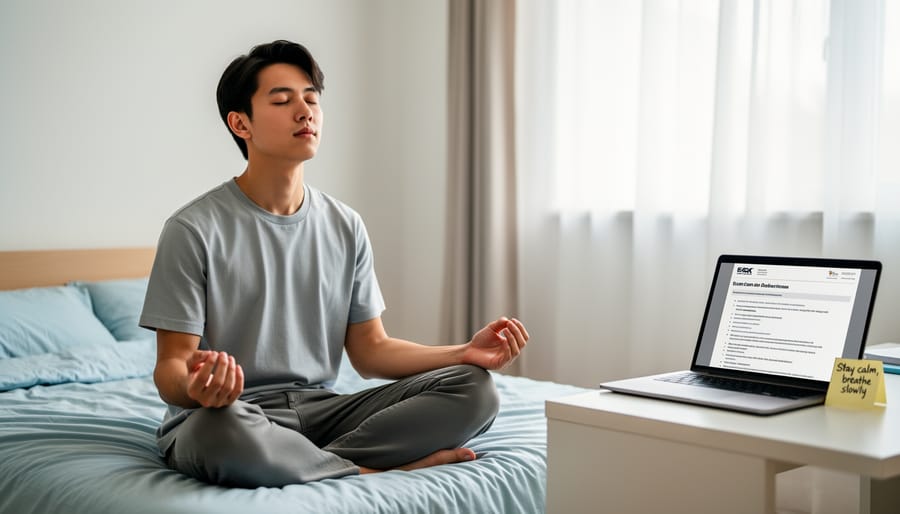
During the exam, employ subtle anxiety-reduction techniques that won’t trigger proctoring alerts. Practice diaphragmatic breathing by placing one hand on your stomach and breathing deeply for a count of four, holding for four, and exhaling for four. This can be done while maintaining your forward gaze at the screen. Similarly, progressive muscle relaxation works well: quietly tense and release your shoulders, hands, or feet under the desk.
Develop positive self-talk scripts beforehand. Replace “I’m being watched and judged” with “The proctor is here to ensure fairness for everyone, including me.” One student shared that reminding herself “I’ve prepared well, and this technology just verifies my honest work” transformed her testing experience from overwhelming to manageable.
Handling academic pressure becomes easier when you reframe the proctoring technology as protection rather than surveillance. Remember that thousands of students successfully complete proctored exams daily. With proper preparation and these evidence-based strategies, you can join them in demonstrating your knowledge confidently, regardless of who or what is watching.
For Educators: Supporting Students Through Remote Proctored Exams
Supporting your students through remote proctored exams requires proactive communication and thoughtful preparation. Research from educational institutions shows that students who receive structured guidance perform better and report significantly lower anxiety levels during proctored assessments.
Start by communicating exam requirements at least two weeks in advance. Share specific details about the proctoring platform, technical requirements, and acceptable testing environments. Create a one-page checklist students can reference, including necessary identification documents, workspace setup guidelines, and prohibited items. Schools implementing this approach report 40% fewer technical disruptions on exam day.
Provide practice opportunities using the actual proctoring software. Schedule low-stakes practice sessions where students can familiarize themselves with system checks, ID verification processes, and monitoring features. Many successful programs dedicate 15-20 minutes of class time for this walkthrough, allowing students to ask questions in a supportive environment.
Develop clear, compassionate policies for handling technical issues. Establish backup communication channels, such as a dedicated phone line or email address, for students experiencing problems. Document contingency plans for internet outages or software malfunctions. Fair policies acknowledge that technical failures sometimes occur beyond student control while maintaining assessment integrity.
Consider accessibility needs proactively. Work with students who have accommodations to ensure proctoring software settings align with their documented requirements. Some platforms offer features like extended time tracking or modified monitoring protocols.
Address the anxiety factor directly. Normalize the experience by discussing common concerns openly and sharing that temporary nervousness is expected. Provide students with simple stress-reduction techniques they can use before and during exams.
Finally, gather feedback after each proctored exam cycle. Student insights help refine your approach, making future implementations smoother and more equitable for everyone involved.

The anxiety many students feel about remote proctored exams often stems from uncertainty rather than actual difficulty. With thorough preparation, you can transform this apprehension into confidence. Research shows that students who dedicate time to familiarizing themselves with proctoring software and testing their technical setup report 60% less test-day anxiety compared to those who don’t prepare.
The key preparation steps are straightforward: test your technology well in advance, create a distraction-free environment, understand the specific rules of your exam, practice with the proctoring platform, and develop healthy stress management techniques. These aren’t just exam strategies—they’re valuable life skills. Technical troubleshooting, environmental control, and managing performance pressure will serve you throughout your academic career and into professional life.
For students, start your preparation at least one week before your exam. Run through the technical checklist multiple times, not just once. Familiarize yourself with the proctor’s expectations by reviewing all provided materials. Consider doing a practice exam if your institution offers one—students who complete practice sessions are significantly more likely to encounter zero technical issues on exam day.
Educators, your support makes a measurable difference. Provide clear guidelines, offer practice opportunities, remain available for pre-exam questions, and remind students that preparation is the antidote to stress. When you equip learners with both knowledge and confidence, you’re setting them up for success that extends far beyond a single test.